
How to Turn Photos Into Coloring Pages for Kids
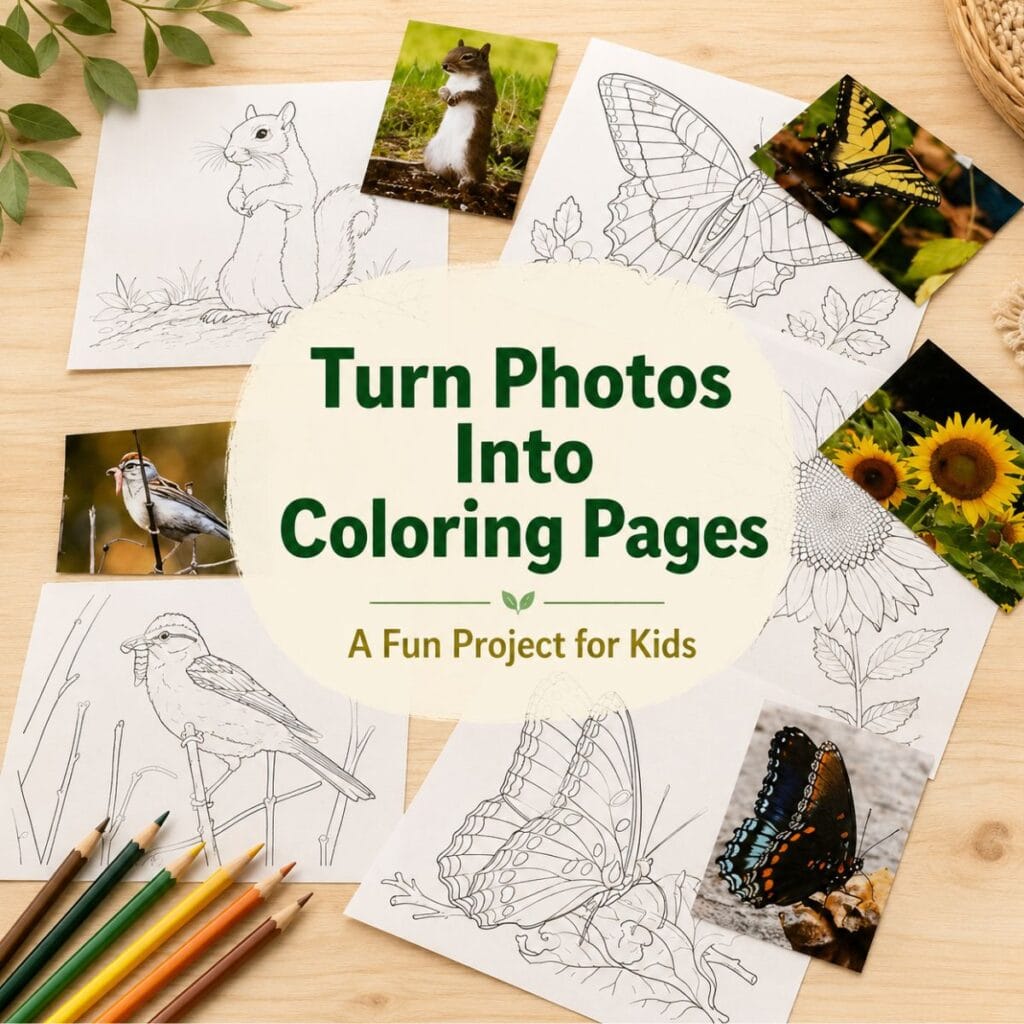
Three sweet little great-nieces give me plenty of reasons to keep making things for children. Two of them are homeschooled, and the youngest is still a toddler. One of my latest projects for them was learning how to turn photos into coloring pages.
Crafting and making things for my grandchildren was always something I enjoyed, but they are all grown now. Since it doesn’t look like I’ll have any great-grandchildren coming my way anytime soon, these sweet little girls have become the recipients of many of my projects.
Learning From My Nature Photos
Lately, my camera has been filled with outdoor photographs—birds, squirrels, butterflies, flowers, and anything else that catches my eye.
The girls enjoy receiving copies of the pictures, especially the two who are homeschooled. They have fun identifying the different birds and animals.
That gave me an idea: Why not turn some of those same photographs into coloring pages?
Some of the pages could be used along with their lessons, while others could simply be colored for fun.
How I Turned My Photos Into Coloring Pages With ChatGPT
Since I use ChatGPT regularly for both personal and business projects, I asked it to turn my photographs into simple coloring pages.
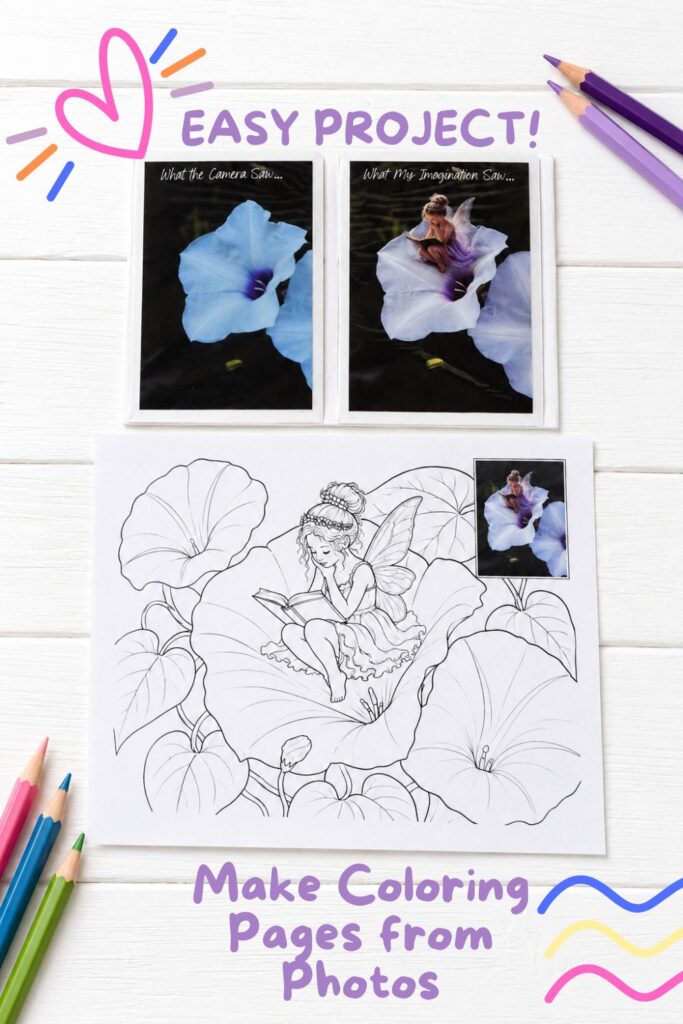
I told it the size I wanted and asked for clear black outlines with plenty of open spaces for coloring. I also had it place a small copy of the original photograph in the corner so the girls could use it as a color guide.
Once the page was finished, I downloaded the file and printed it.
It really was that easy!
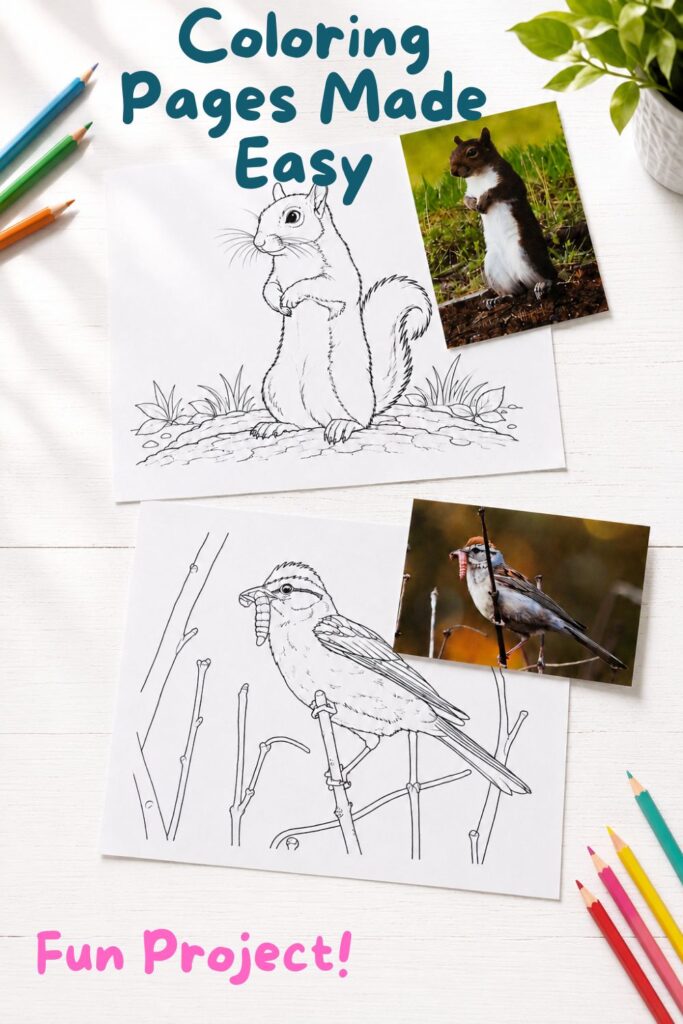
How to Turn Photos Into Coloring Pages in Canva
If you prefer to make the coloring page yourself—or you’ve reached your free ChatGPT image limit—you can also create one in Canva.
- Open Canva and create a letter-size design.
- Upload the photograph you want to use.
- Place the photograph on the page and select Edit photo.
- If the photograph has a busy background, Canva Pro users can try Magic Layers. Separate the image into layers, then remove some of the unnecessary background elements. This will simplify the picture and make the primary subject easier to see.
- Look through Canva’s effects or apps for a Sketch, Outline, Drawing, or Traced effect. The available choices may vary.
- Lower the saturation until the image is black and white.
- Increase the contrast to make the outlines darker.
- Adjust the brightness until the background is mostly white.
- Add a small copy of the original color photograph in one corner as a guide.
- Download the finished page as a PDF for printing.
Depending on the photograph, you may need to experiment with the settings. Pictures with one clear subject and a simple background will usually work best.
A quick note: Honestly, using ChatGPT is much easier than following all the steps above, and I’ve found that the finished coloring pages usually turn out better too. Save yourself some time and create a free ChatGPT account to try it yourself!
A Simple Project Made More Personal
Of course, AI isn’t perfect, and there are legitimate concerns about privacy and how we use it. I wouldn’t upload a photograph containing anything personal that I wasn’t comfortable sharing.
For my purposes—working with my own nature photographs and creating simple projects for the girls—I’m comfortable continuing to use it. In fact, I use AI almost every day for both personal and business tasks.
Sometimes I wonder how the younger generation would manage if they suddenly didn’t have internet searches to answer every question, AI to help write every paragraph, or technology to solve so many everyday problems.
And what happens if we ever stop printing books?
Well, that is far too much to think about today.
For now, I’m focusing on a much simpler concern: deciding which photograph should become the next coloring page.)))


I may try this in both ai and canva, just for kicks. Don’t have grandkids and I might have one great niece that would enjoy coloring. Thanks for this post.
It’s way easier in AI))) And overall, the page looks better….of course I probably spend too much time in Canva trying to make things “just right” and then I get to chasing rabbits….and wind up doing something else lol